
3. Using Nurture for the First Time
Once you've finished completing your registration on Nurture, you can go ahead and log in for the first time! If you still need to complete signing up, check out the Setting up your Account article.
Tip: Remember, Nurture is a web-based application! Nurture can be accessed on any device via the link https://app.nurturetechnology.ca/ - save this as a bookmark on your browser and/or add a shortcut to your home screen/desktop.
Home Page
Depending on your User Role, Nurture may look differently for you. We go into the specifics in our How-to's Section articles.
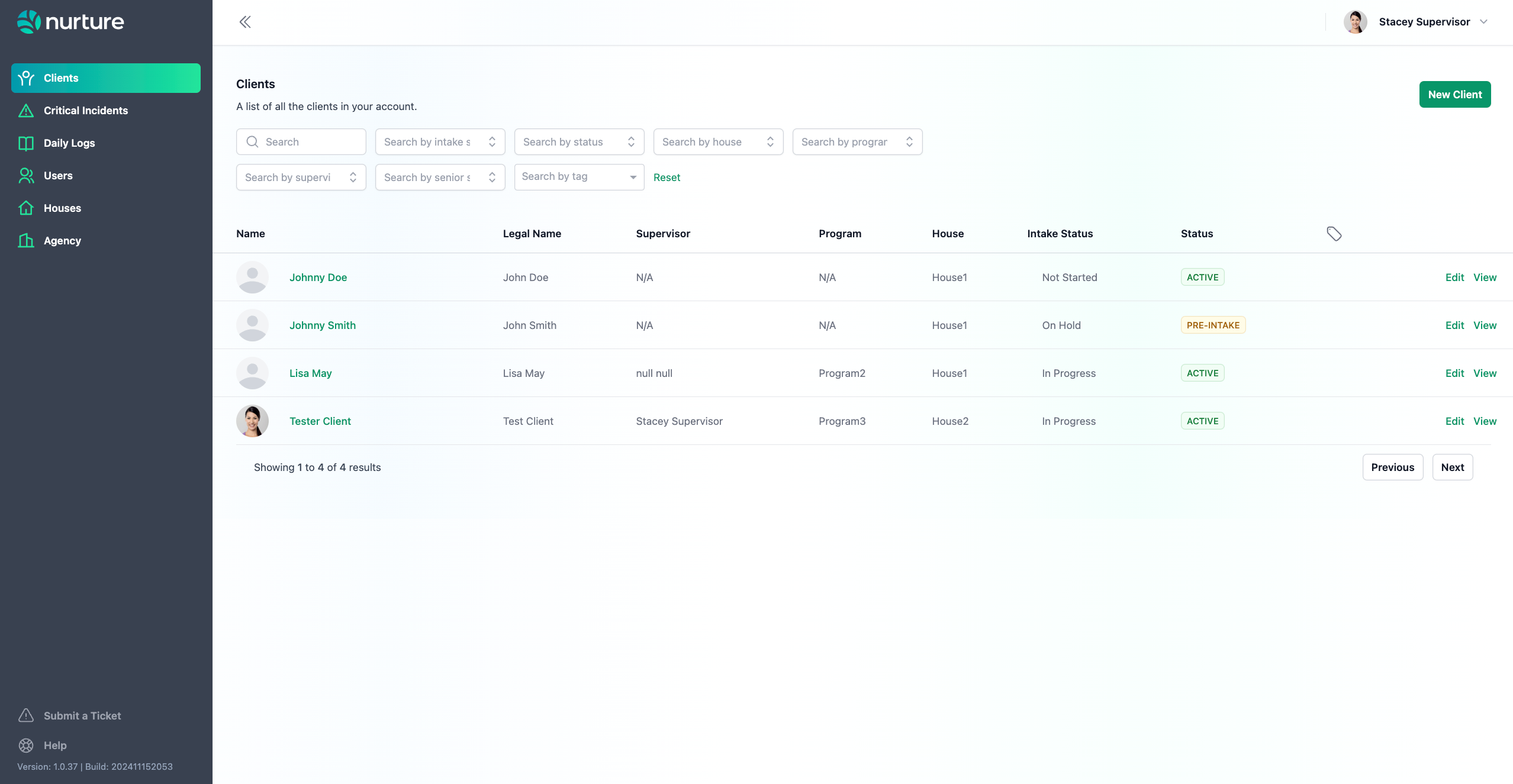
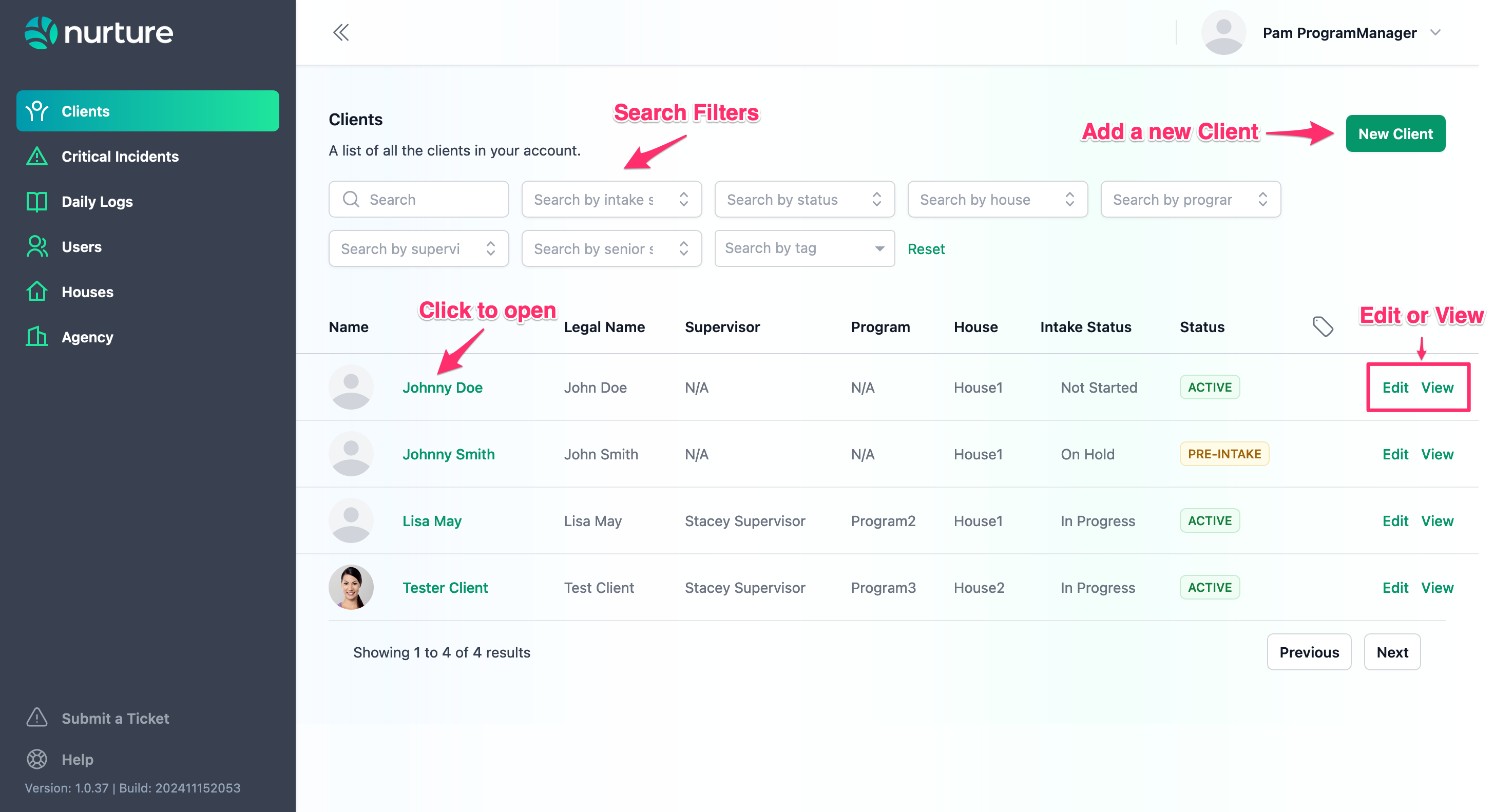
Your Nurture Home page is a page containing the list of Clients in your agency. This is the same for all User Roles.
Why is my screen blank?
If you are a direct support/frontline staff and your screen is blank, it means you haven't been assigned any clients yet. Your supervisor/agency administrator provides access per client - please reach out to them directly to provide you with the access you need.
Your Profile
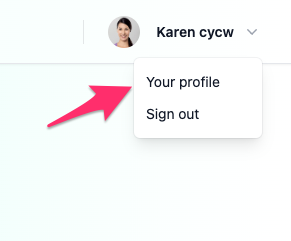
Every user on Nurture has their own profile. To access your profile, click on your avatar at the top right of any page on Nurture and select "Your profile".
Updating your Profile
Within your profile, you can update your contact information as well as choose the MFA notification type you'd like to receive whenever you sign in.
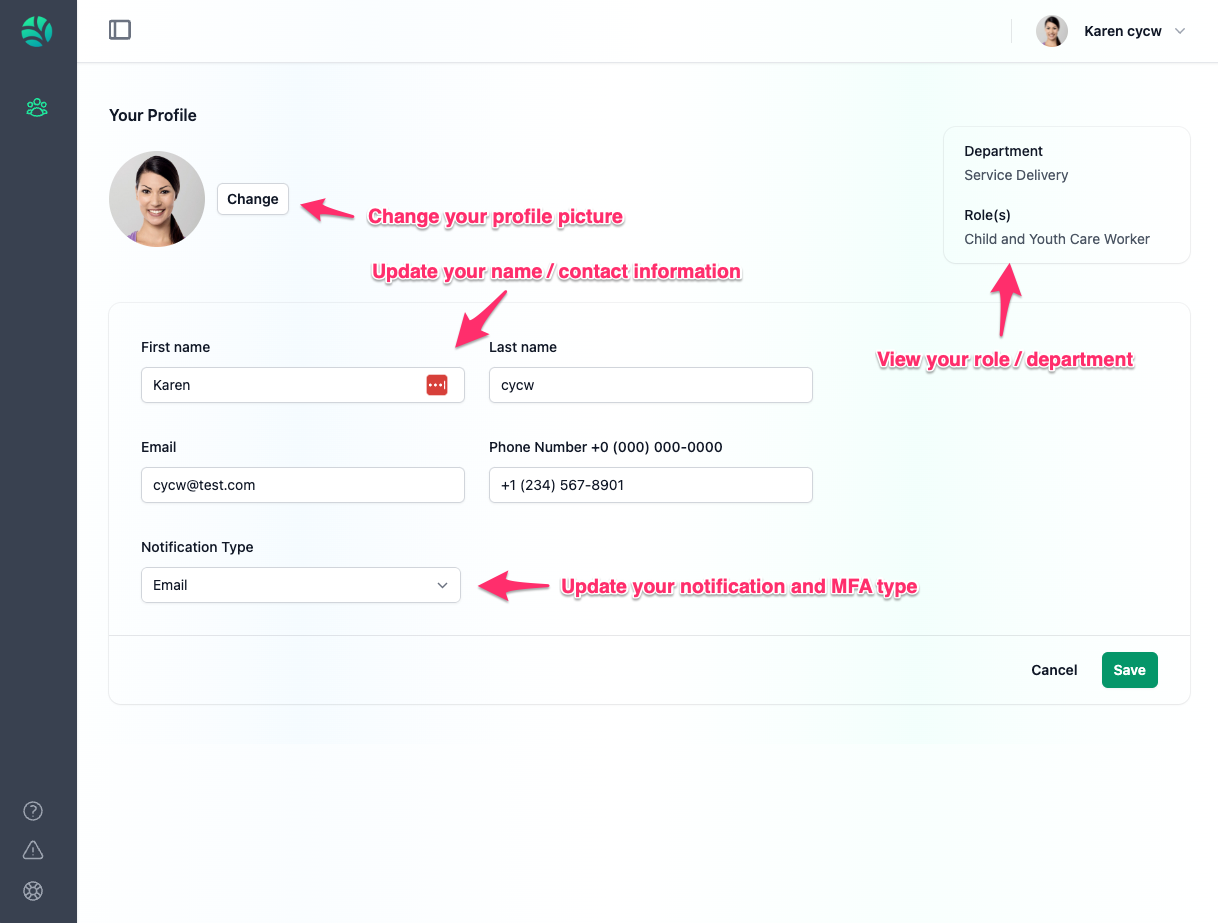
Your profile will also contain your Department and any Role(s) assigned to your user account.
Don't forget to hit save when done.
Navigation
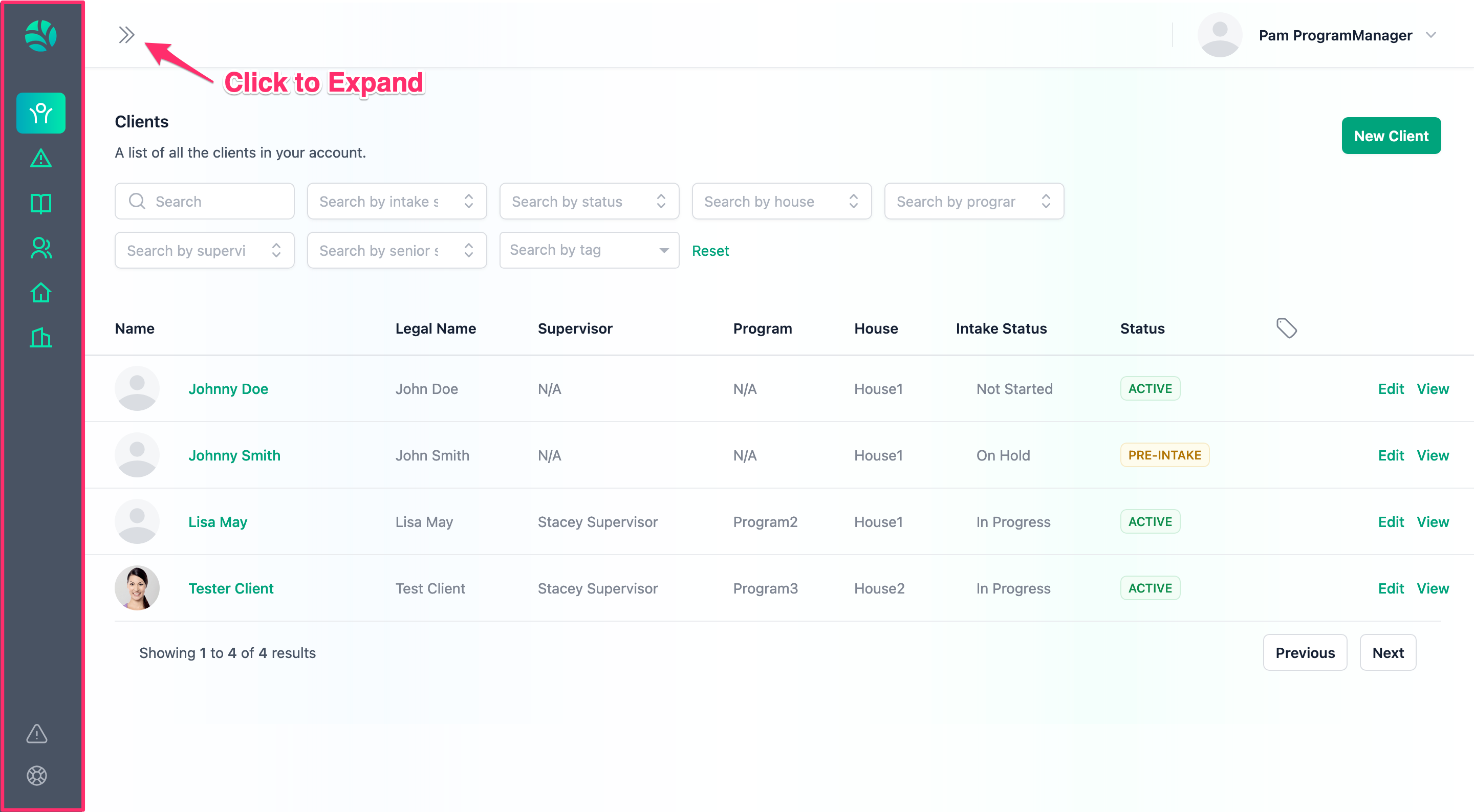
The navigation bar contains links to pages across the app.
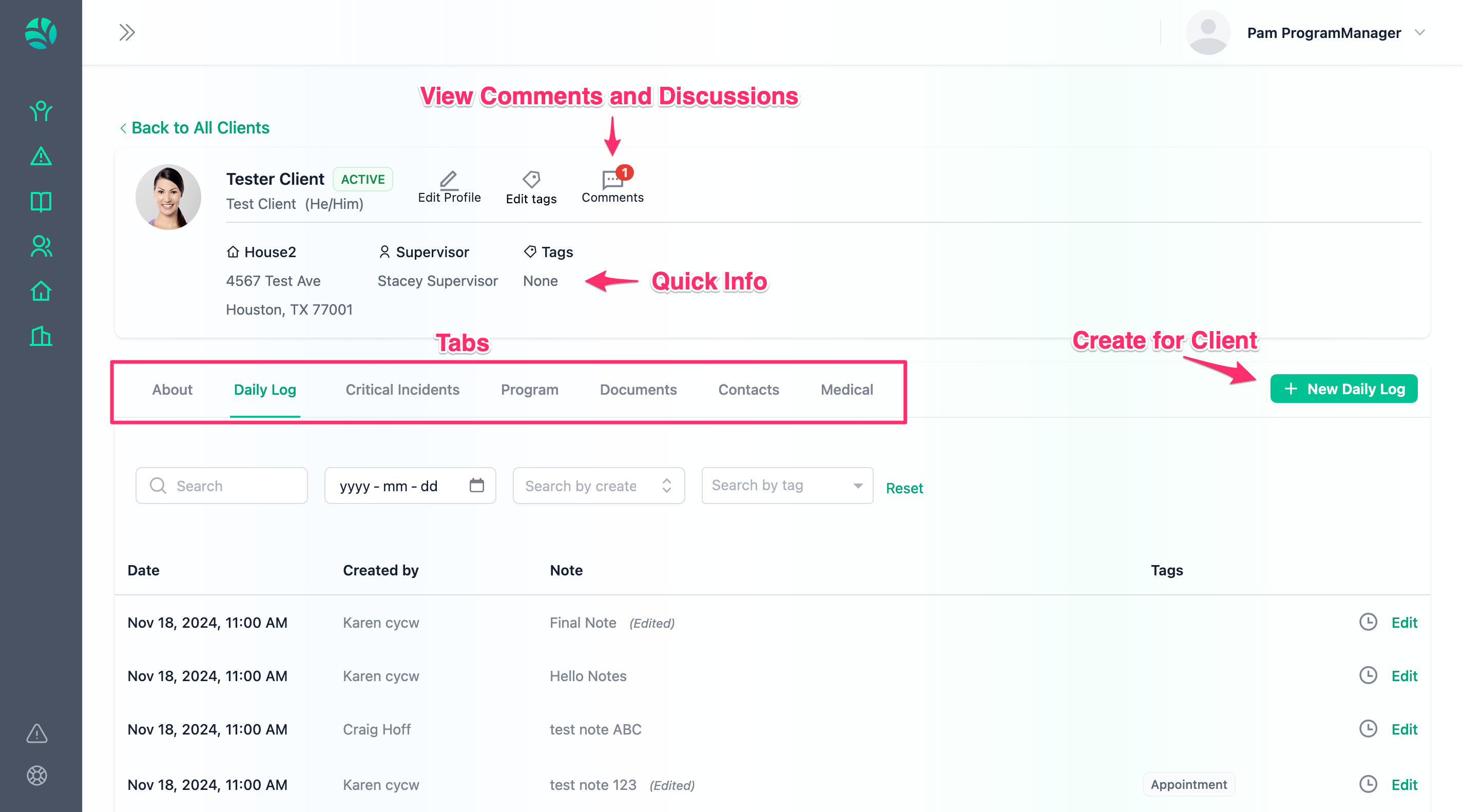
Clients
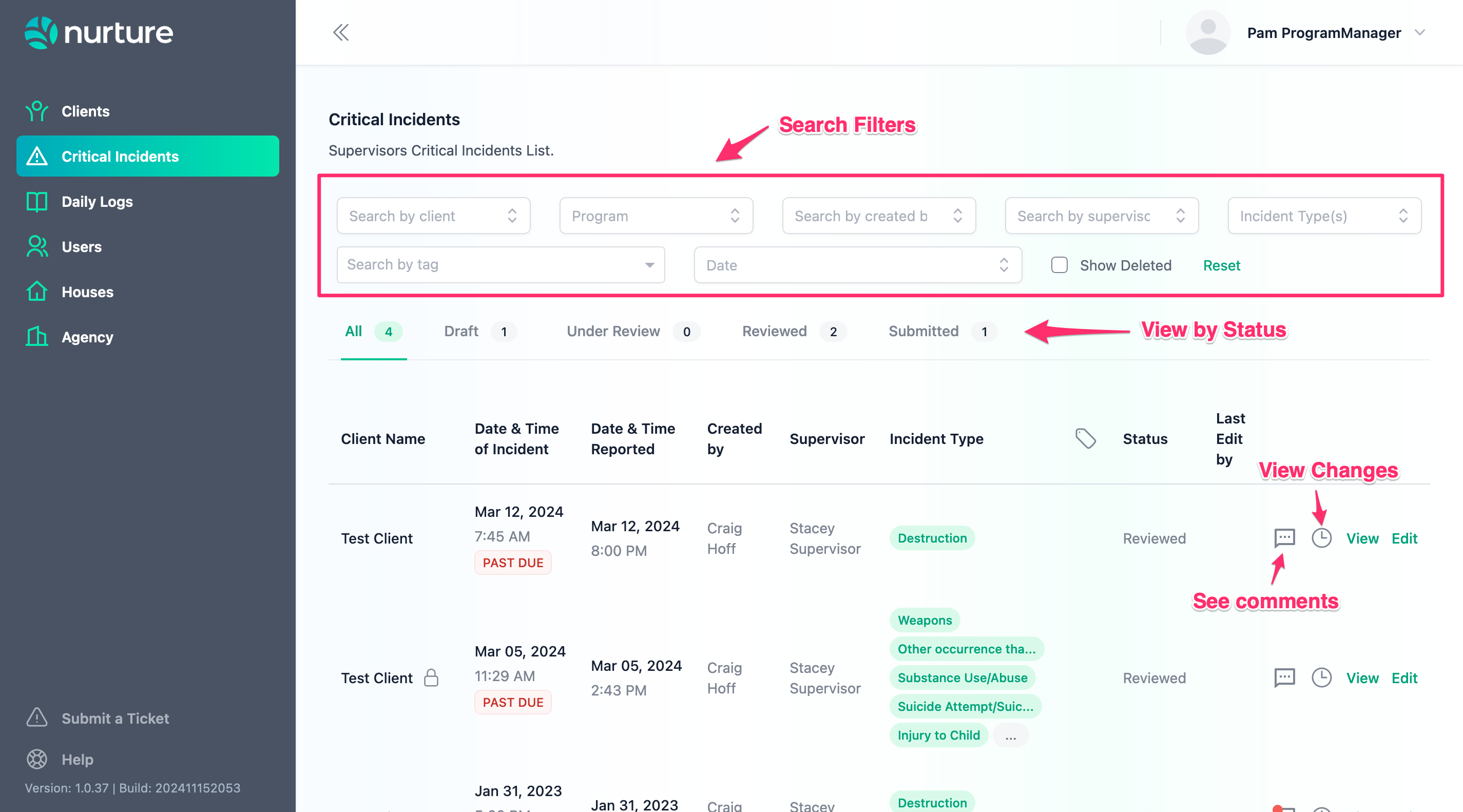
Critical Incidents
Daily Logs
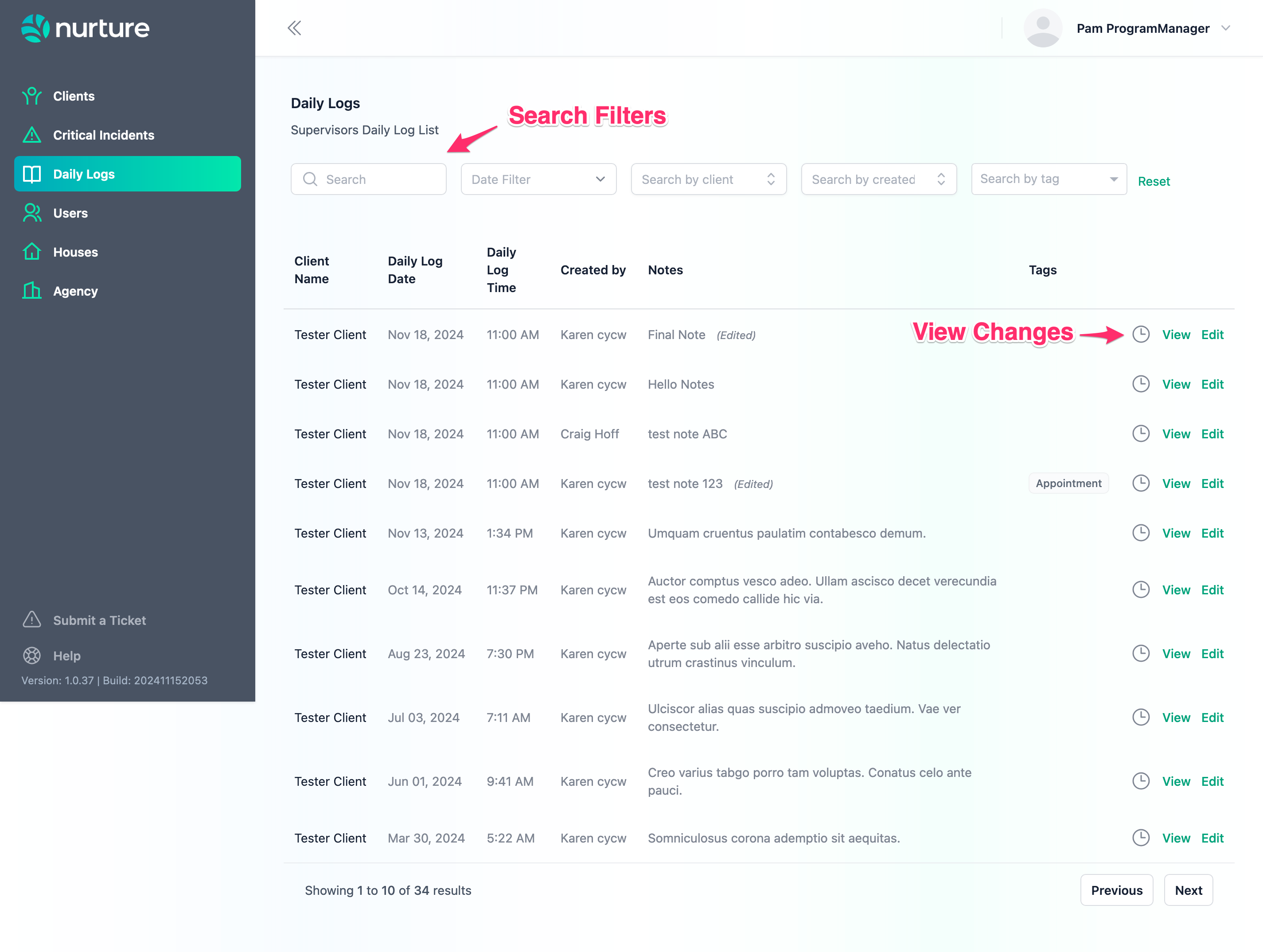
To Create a Daily Log, you must go to the individual Client profile.
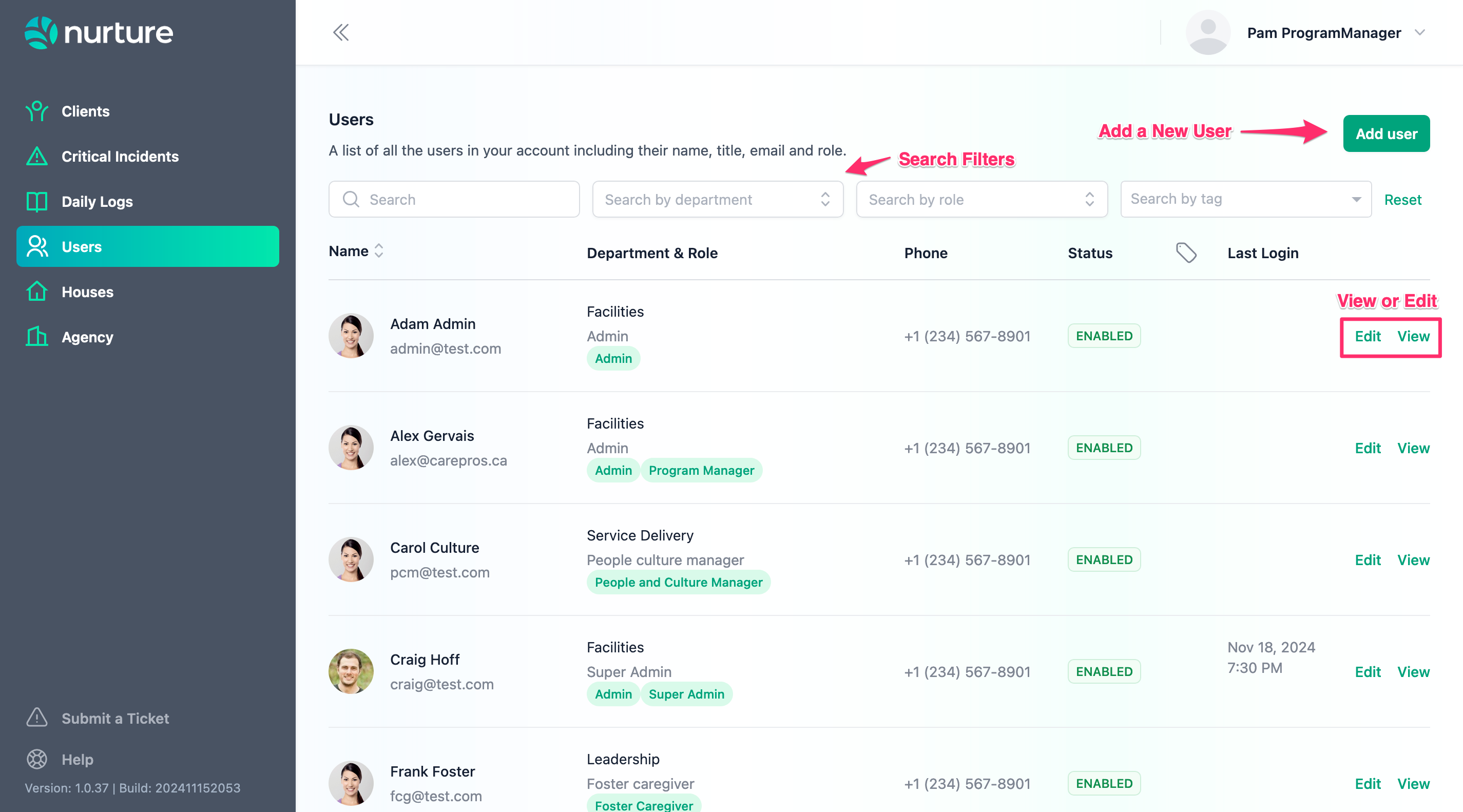
Users
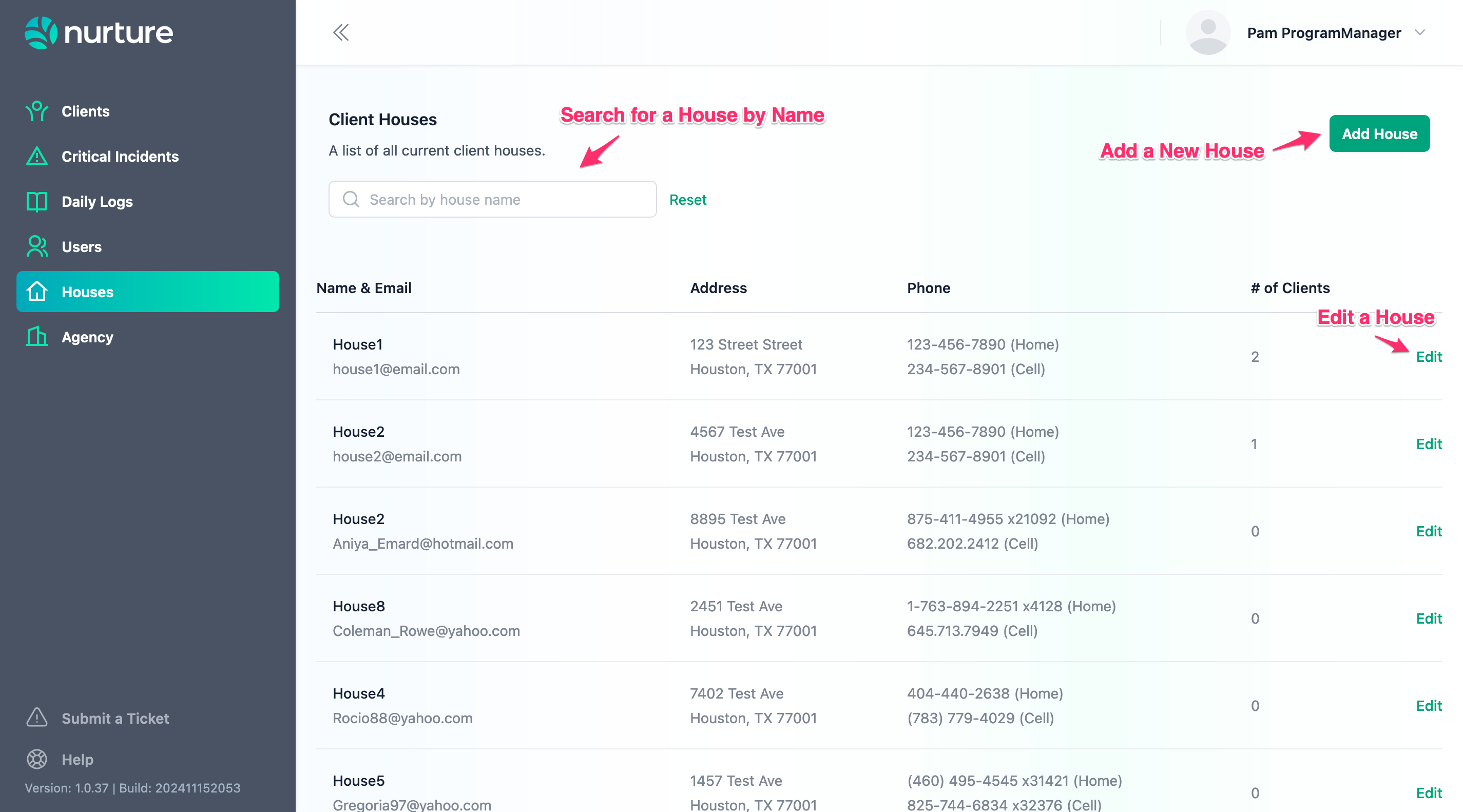
Houses
Next Up
If you are a Frontline/Direct Support Staff, continue your learning in the Nurture for Frontline Staff article