
2. Setting up your Account
Your Nurture account is created by your Agency Administrator. Depending on your User Role, you will have different capabilities/permissions when using Nurture.
1. Accept your email invite
When your account is created, you will receive an email invite to set your password on Nurture. If you are unsure which email was used for your account, contact your Agency Administrator or direct supervisor.
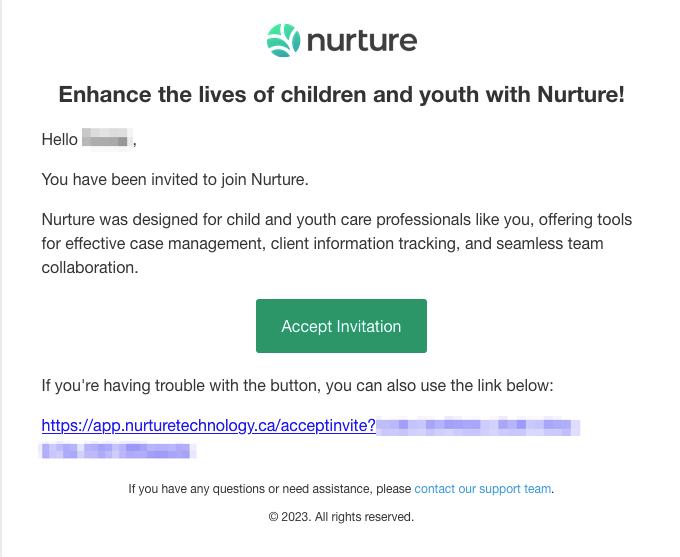
Be sure to double check that the sender is from support@nurturetechnology.ca
Please also note that you cannot use this link to access Nurture. The invite link is a temporary URL used to set your password for the first time. Access Nurture by going to https://app.nurturetechnology.ca/
Click on "Accept Invitation" or click on the hyperlink below it.
If you didn't receive the email:
If you haven't seen the invite email in your inbox, be sure to check your spam/junk mail (we have seen some email carriers send Nurture emails straight to spam).
If you are still experiencing issues with finding the email invite, ask your supervisor/agency administrator to resend the invite. Alternatively, you can provide an alternative email address to use.
For more information on how to fix this, check out the Troubleshooting Common Issues guide.
2. Set your password
Create a strong, secure password that you will remember.
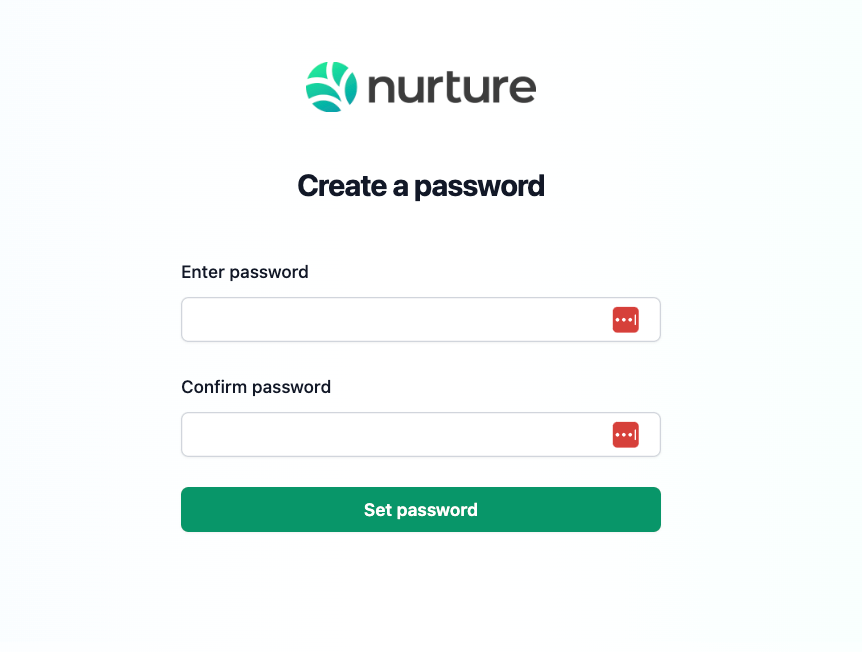
Once it has been set, you will be prompted to log in.
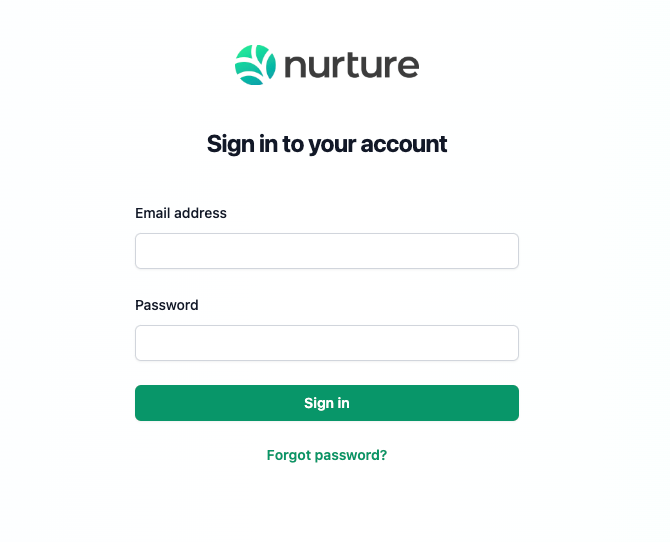
3. Log in
Navigate to https://app.nurturetechnology.ca/
Enter your username and password.
Click "Sign in”.
Next Up
For Part 3 of Getting Started, go to 3. Navigating Nurture.